How to link your Telegram account to Claude
This guide shows how to link your Telegram account in the Agent portal and connect it to Claude as a custom connector. It takes about five minutes.
Before you start
- Sign in to the Agent portal (sign in or create your account with an invite code).
- Have your phone ready: Telegram will send a verification code to your Telegram app.
- Have the Claude app open (Settings › Customize).
1Start linking
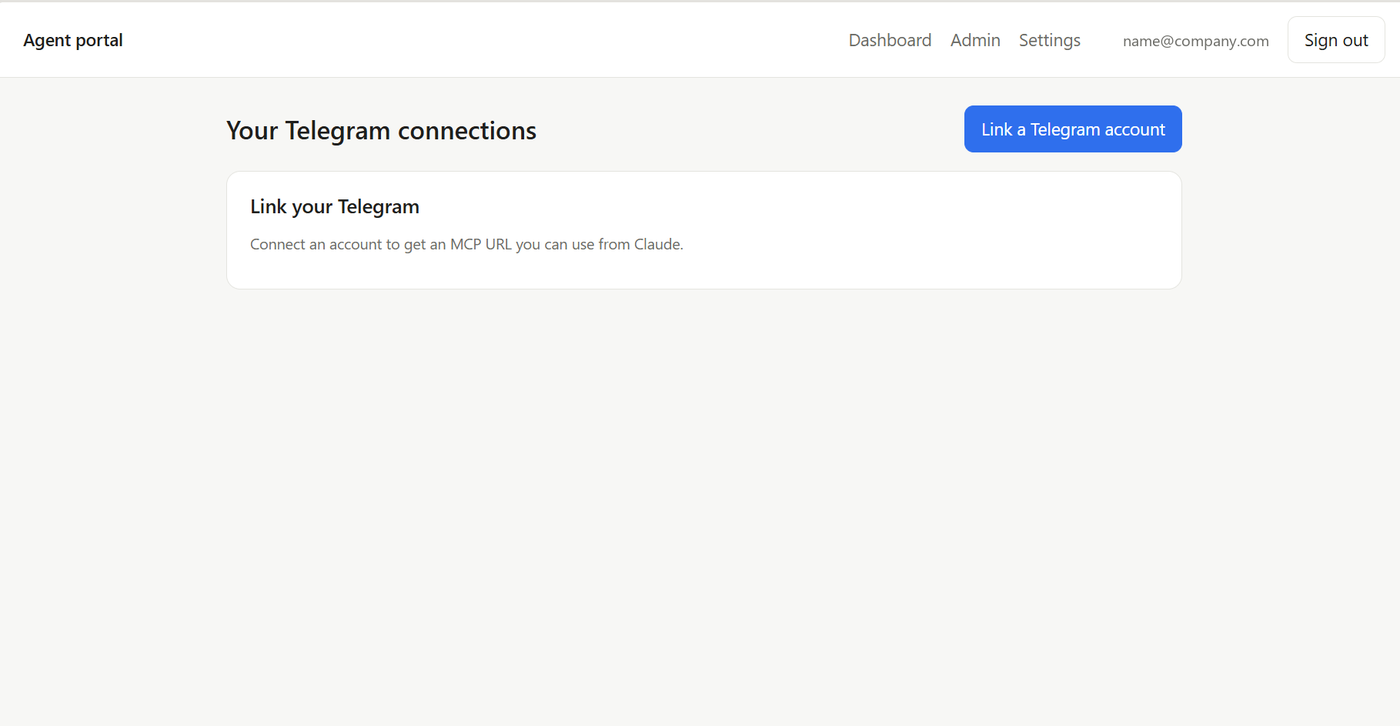
On the Your Telegram connections page, click Link a Telegram account.
2Enter your phone number
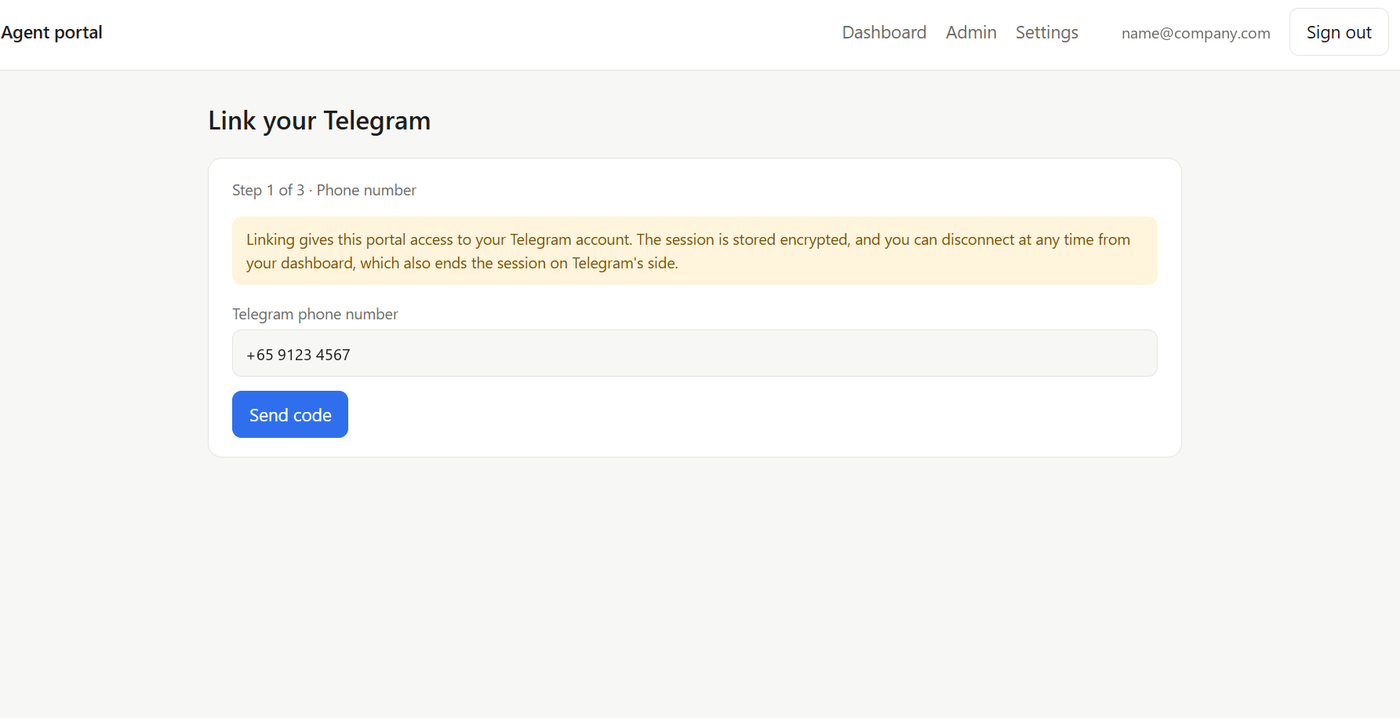
On Step 1 of 3 · Phone number, type your Telegram phone number with the country code (for example +65…) and click Send code.
3Enter the verification code
On Step 2 of 3 · Verification code, open your Telegram app, find the code Telegram sent you, type it into the Code field and click Continue. Use Cancel to stop.
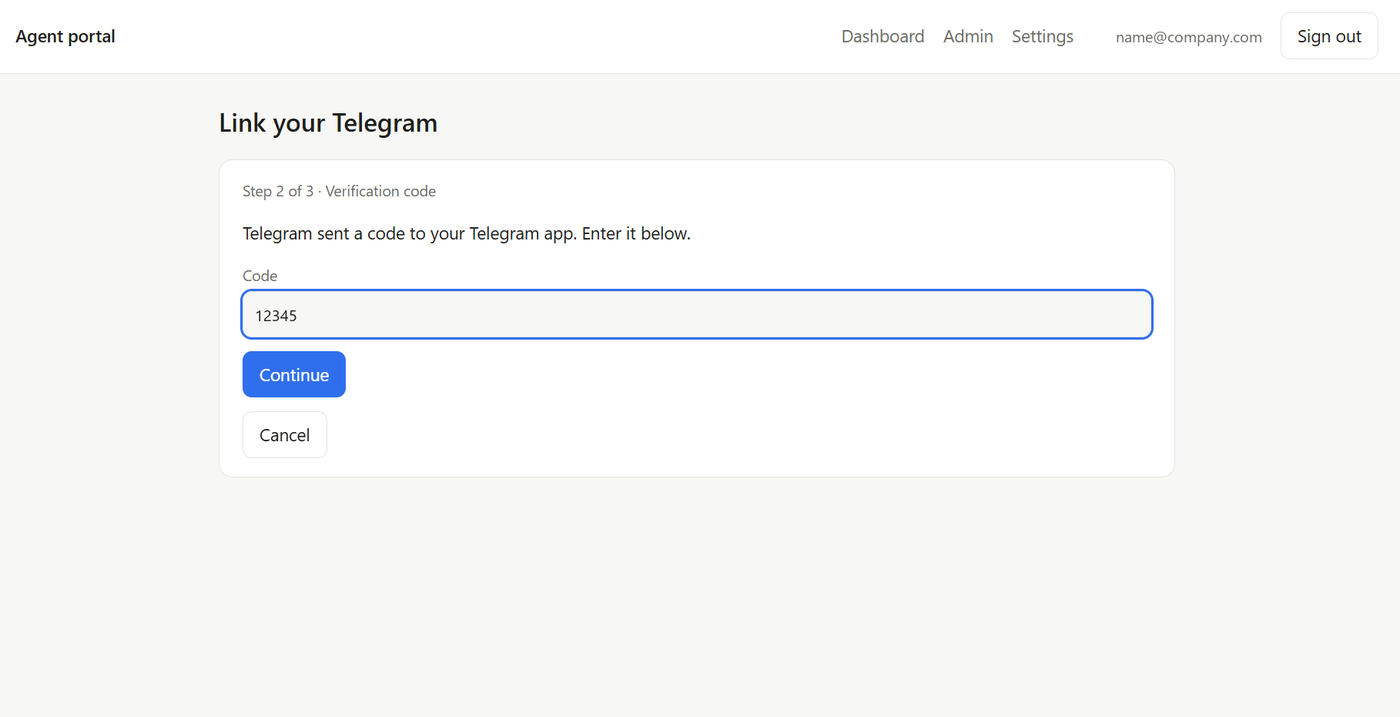
If your Telegram account has two-step verification turned on, one more screen asks for your Telegram cloud password. Enter it to finish.
4Create a connection token
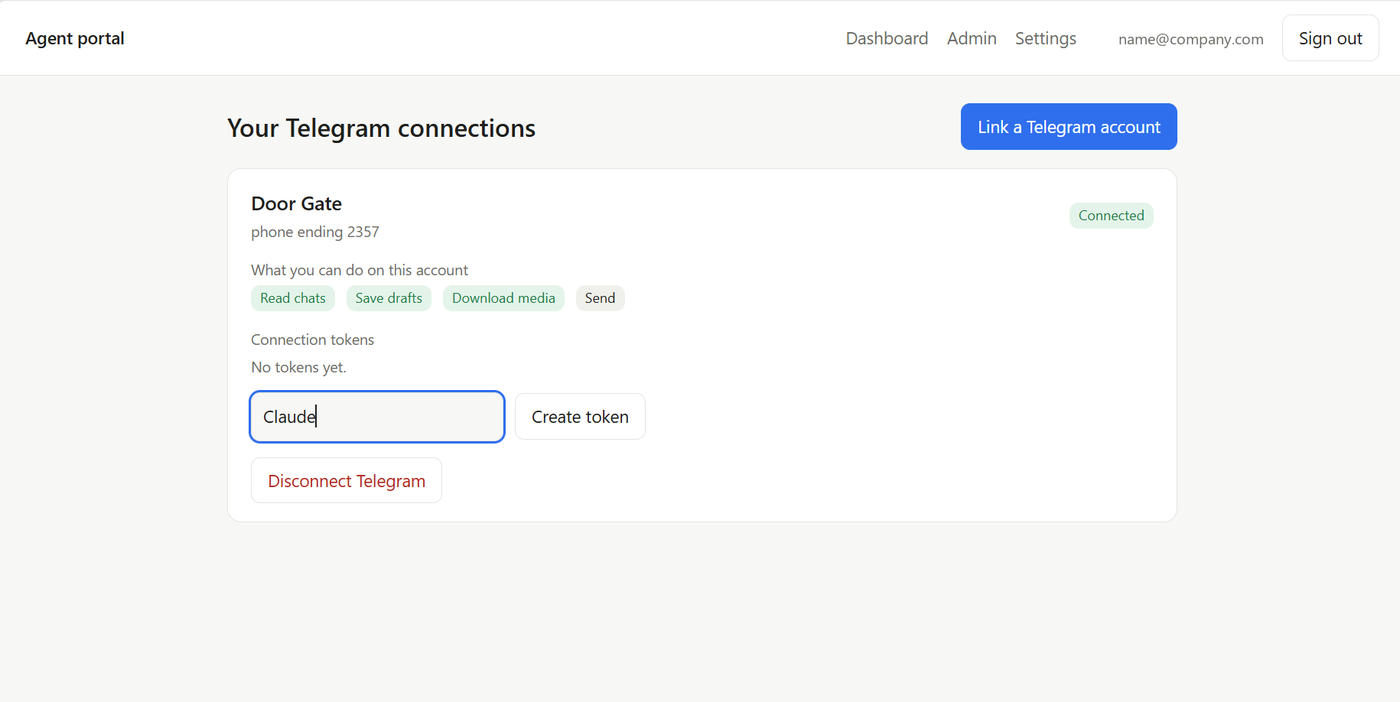
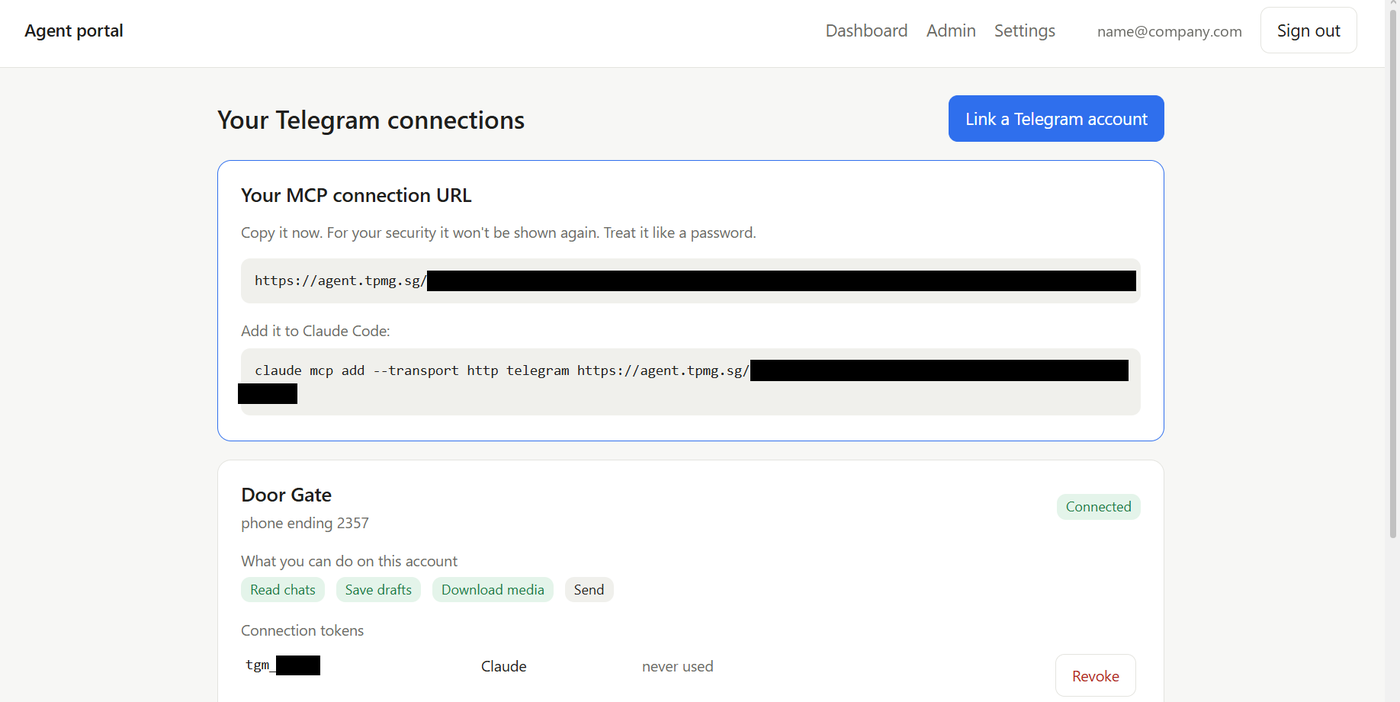
Your account now shows as Connected, along with what you can do on it (Read chats, Save drafts, Download media, Send). Under Connection tokens, type a name for the token (for example “Claude”) and click Create token.
5Copy your MCP connection URL
The portal shows Your MCP connection URL. Copy it now and keep it somewhere safe. A ready-made claude mcp add command for Claude Code is shown below it.
6Open “Add custom connector”
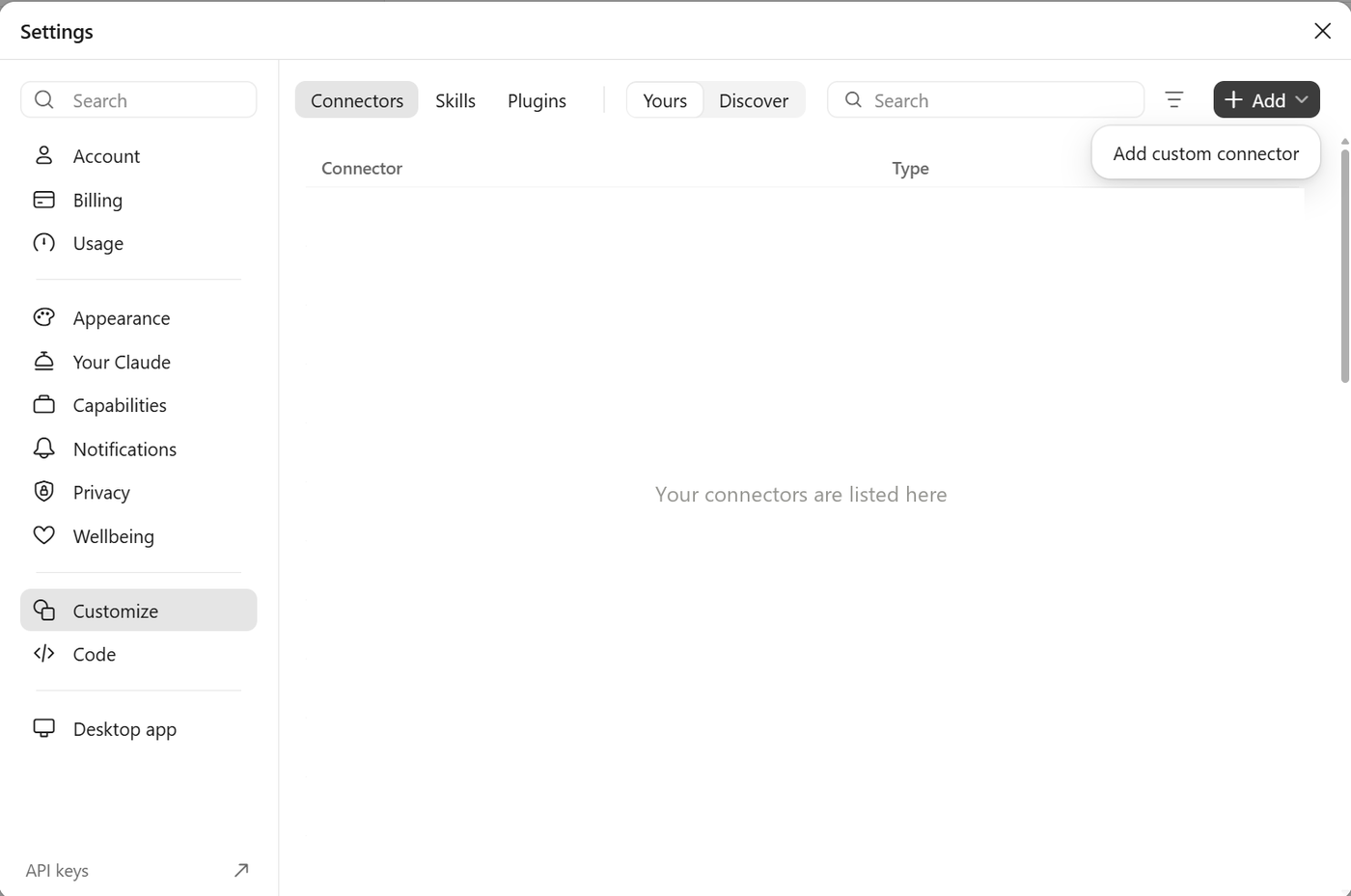
In Claude, go to Settings › Customize › Connectors. Click Add, then choose Add custom connector.
7Name it and paste the URL
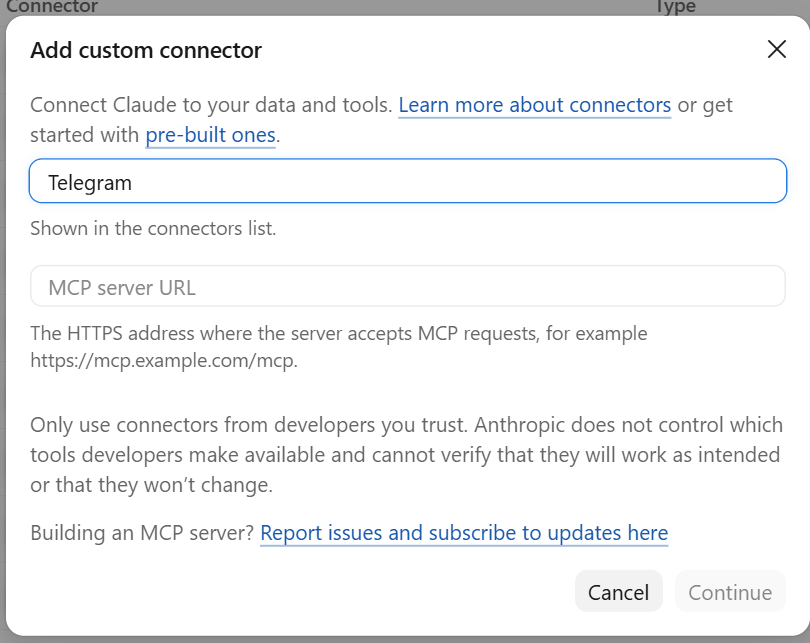
Type a name (for example “Telegram”), paste the MCP connection URL you copied in step 5 into the MCP server URL field, then click Continue.
8Connect
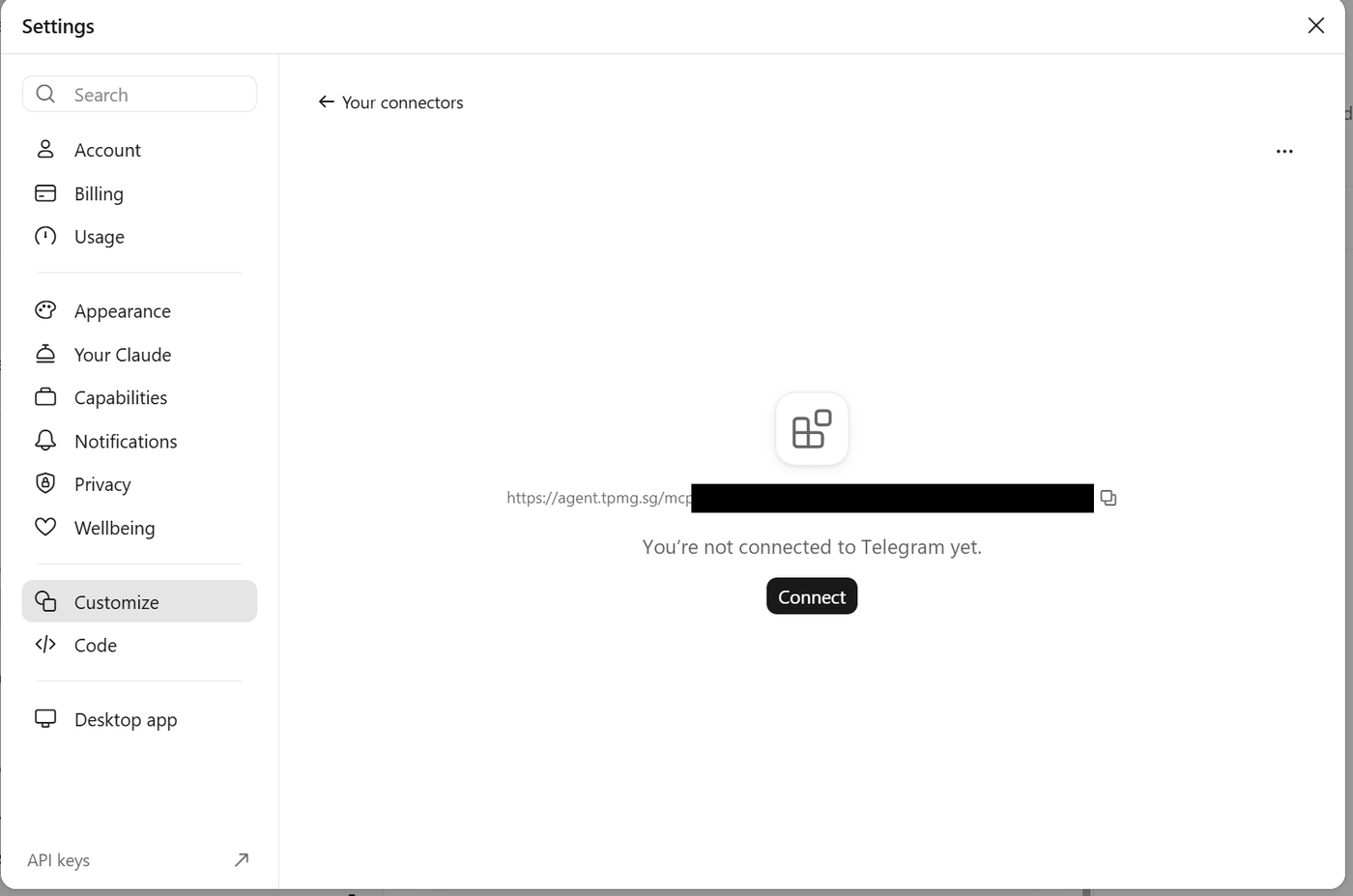
The connector page shows “You're not connected yet”. Click Connect. Once connected, Claude can use your linked Telegram account.
Tips
- Lost the URL? Revoke the old token and create a new one, then update the connector in Claude.
- Stop access: click Revoke on a token to cut off Claude, or Disconnect Telegram to remove the account and end the session.
- Never share your MCP URL or screenshots that show it.